With multiple-page sites, a navigation menu at the top of every page helps visitors find their way around. If you have lots of pages, add submenus.
-
- Log in to your Website Builder account.
- Click Edit Site.
- Click on your website’s menu/navigation pane (without clicking any of its links) and click Settings.
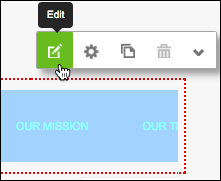
Note: If your website does not yet have a navigation menu, click the Navigation tool in the left-hand toolbar and the menu is added to the page.

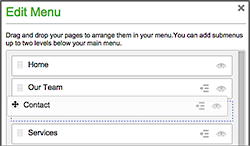
- Use Edit Menu to drag and drop your pages in the order you want them to appear in the navigation menu.
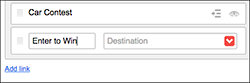
- If you need to add more navigation/menu links, click Add link, enter a page title in the new, blank field and use the Destination menu or field to link the menu item to a new page.
- To hide a menu (e.g. a sales page), click that item’s eye icon.
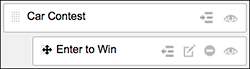
- To create a submenu, click that item’s indent icon. Or click on a menu item’s dotted grid and drag the item under and to the right of another menu item.
- Click Save to apply the changes and close the Edit Menu window.
- Take a look at your new menu.

- If you need to change it, start again with Step 3. Once you’re happy with the results, click Publish to update your site online.
Next steps
More info
Organize pages with navigation menus – Website Builder 7